Templating System
This guide covers the templating system, which was created to speed up the generation of plots, where you know the channel names in advance. The idea is that you generate the plots you want once, then you can re-use them over and over!
A template saves a subplot layout, axis settings and series patterns, then re-applies them to any file whose column names match. The idea is to build the layout once, reuse it on every new input file.
The Template Control
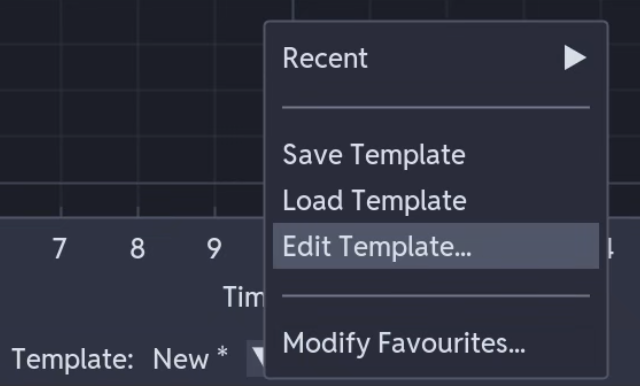
At the bottom of the plot area, Template: shows the active template's name (with a trailing * once the plot has changed since it was loaded or saved). Click the arrow next to it for:
- Favourites / Recent - jump straight to a saved template
- Save Template / Load Template - file dialogs for
.yamltemplate files - Edit Template... - opens the visual editor
- Modify Favourites... - pin or unpin templates (up to five)
- Clear Template - detach the current template, shown only while one is active
Applying a Template
- Pick one from Favourites, Recent, or Load Template
- Drag a file header (not individual series) from the sidebar onto the plot area
- Each column name is matched against the template's series patterns and placed in the matching subplot
Note
Drag the file header. The template needs every column in the file to distribute them correctly.
Patterns support * and ? wildcards, match case-sensitively, and are tried in the order the template's subplots were saved, so the first subplot to claim a series wins.
Building a Template
Set up a plot the way you want it, then Save Template to capture the layout as it stands, or open Edit Template... for finer control.
Template Editor
There is a live preview of your plot layout on the right; click a subplot there to select it. The left panel edits that subplot's title and axis ranges.
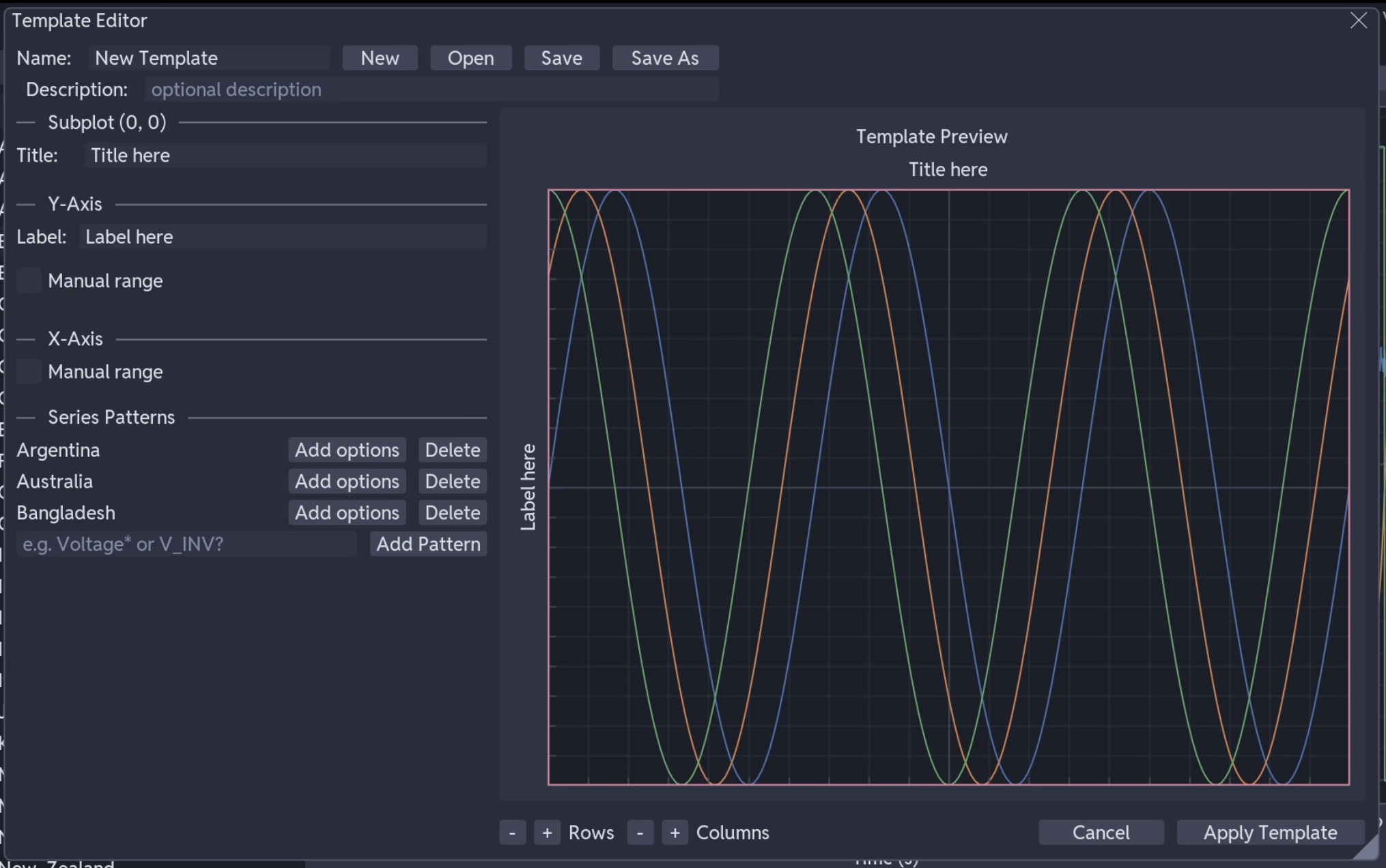
Rows and Columns resize the whole grid. Apply Template commits your changes to the plot; Cancel discards them. You can also Save/Open/Rename your template in the UI too.
Series Patterns
Type a pattern, such as Voltage* or V_INV?, and click Add Pattern. * stands for any run of characters, ? for one. Click Edit options on a pattern to make it a scatter series, move it to the secondary Y-axis, or give it a multiply/divide/add transform on either axis; Delete removes it. The preview draws one demo line per pattern to show the shape of the plot, not a match against real data.
See Data Transformations for what the multiply/divide/add options do.
Managing Templates
Templates are .yaml files in %USERPROFILE%\.cuteplot\templates\. You can share them with your friends and colleagues.
Troubleshooting
No series matched: check the patterns against your column names (matching is case-sensitive), and confirm you dragged the file header rather than a single series.
Series in the wrong subplot: patterns are matched in subplot order, so a broad pattern in an earlier subplot can claim series meant for a later one. Reorder the subplots or make the pattern more specific.