File Formats
This is an overview of the main file formats supported by Cute Plot. We are constantly learning about new file formats, and want to be able to support as many relevant time-series data formats as possible!
If you need a format that is not listed here, get in touch at support@cuteplot.com.
Opening Files
Drag and Drop
Drag files from your file explorer onto the Cute Plot window. You can drop several at once. If a template is loaded, you can apply it to each new file automatically, but only if you drop it into the right side of the UI (the plot window).
File Menu
- Click File → Open
- Select one or more files
- Files load automatically
Supported Extensions
| Extension | Format | Lazy Loading |
|---|---|---|
.csv |
CSV (comma, semicolon or tab-separated) | Yes |
.xlsx, .xls |
Microsoft Excel | No |
.parquet |
Apache Parquet | Yes |
.inf + .out |
PSCAD simulation output | Yes |
.out |
PSS/E dynamic simulation output | No |
.psout |
PSCAD binary output | No |
.dat |
Blackbox RTS measurement data | No |
.cuteplot |
Cute Plot workspace (save/load sessions) | - |
Format Details
CSV (.csv)
The most common format. Cute Plot expects a header row, the first column holding time or index values, and the remaining columns holding numeric data.
- Delimiters: commas and semicolons are detected automatically. Tabs usually work, but commas and semicolons are the more reliable choice.
- Encoding: UTF-8. Other encodings load, but accented and non-Latin characters may be mangled.
- Non-numeric columns: skipped, with a notification.
- Duplicate column names: given
_1,_2suffixes. - SMA CSVs: detected and handled automatically, including multi-row headers and European decimal separators.
Excel (.xlsx, .xls)
- Each sheet loads as a separate file in the sidebar.
- Header and metadata rows are detected and skipped.
- Timestamp columns are identified by name, type or pattern.
Parquet (.parquet)
Apache Parquet columnar files load directly. Parquet suits very large datasets, since it supports lazy loading.
PSCAD (.inf + .out)
Open the .inf file. Cute Plot finds the matching .out files automatically, provided they are in the same folder.
PSS/E (.out)
Binary PSS/E dynamic simulation results. Cute Plot reads the file header to tell these apart from PSCAD .out files.
Blackbox RTS (.dat)
Binary measurement data with DT# timestamp markers. Cute Plot reads both the original six-channel format and the newer PQV format, and detects endianness automatically.
PSCAD Binary (.psout)
PSCAD's single-file binary output.
Datetime Handling
If the first column holds datetime strings rather than numeric time values, Cute Plot converts them to elapsed seconds. These formats are recognised:
| Format | Example |
|---|---|
YYYY-MM-DD HH:MM:SS |
2024-01-15 14:30:00 |
YYYY-MM-DD HH:MM:SS.ffffff |
2024-01-15 14:30:00.123456 |
DD/MM/YYYY HH:MM:SS |
15/01/2024 14:30:00 |
DD/MM/YYYY HH:MM:SS.ffffff |
15/01/2024 14:30:00.123456 |
DD/MM/YYYY hh:MM:SS AM/PM |
15/01/2024 02:30:00 PM |
MM/DD/YYYY HH:MM:SS |
01/15/2024 14:30:00 |
MM/DD/YYYY HH:MM:SS.ffffff |
01/15/2024 14:30:00.123456 |
YYYY/MM/DD HH:MM:SS |
2024/01/15 14:30:00 |
Further formats, and general-purpose parsing, are planned.
Large Files
Cute Plot chooses how to load a file according to its size:
- Under the threshold: the whole file is read into memory and every series is available at once.
- Over the threshold: the file is loaded lazily and only loads one series at a time. Lazy loading works for PSCAD inf/out, CSV and Parquet files only.
The threshold is 200 MB by default, and adjustable from 10 MB to 10 GB in Settings → Preferences... → Files → Lazy load threshold. With 16 GB of RAM or more, raising it lets most files load in full anyway.
File Management
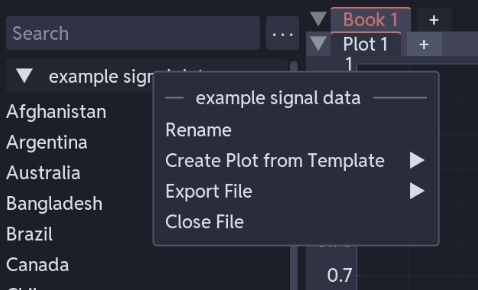
- Rename: right-click a file in the sidebar → Rename. This changes the display name only.
- Export: right-click → Export File → Export to .csv or Export to .parquet.
- Close: right-click → Close File. This removes the file and all its series from the session.
Troubleshooting
File does not load
- Check the extension is one of
.csv,.xlsx,.xls,.parquet,.inf,.out,.dat,.psoutor.cuteplot. - For PSCAD, open the
.inffile and keep the.outfiles in the same folder. - For PSS/E
.outfiles, check the file has a valid binary header.
Columns are missing or empty
- Non-numeric columns are skipped, so text columns will not appear.
- Check the notification bar for messages about skipped columns.
- Check the CSV has a header row. Without one, columns may not load correctly.
Datetime column not recognised
- Check the format against the table above.
- The datetime column must be the first column in the file.
- Colons used as microsecond separators, as in
14:30:00:500000, are handled automatically.
Large file is slow to load
- Only CSV and Parquet files over the lazy-load threshold load lazily; every other format is read into memory in full.
- Lower the threshold in Preferences → Files if large files are slow to load, or raise it if you have RAM to spare.
- Close files you are no longer using to free memory.
- 16 GB of RAM or more is recommended for large files.
Wrong delimiter detected
- Cute Plot detects commas and semicolons. If detection fails, check the file uses one of the two consistently.