Installation & Setup
This guide covers how to install Cute Plot on your computer. We’re always wanting to hear how to make this process more seamless. If you have any issues with the steps below, feel free to get in touch at support@cuteplot.com.
System Requirements
Operating System
- Windows: Windows 10 or later
Hardware Requirements
- RAM: 4 GB minimum; 8 GB or more for large datasets
- Storage: 200 MB for the installation, plus space for your data files
- GPU: a graphics card supporting OpenGL 3.3. Without one, Cute Plot falls back to software rendering, which is slower
Installation Methods
Download Cute Plot from https://cuteplot.com/download/
Installer
The installer is the recommended option. It installs Cute Plot in %LocalAppData%.
Portable
If your user account does not allow you to install programs, use the portable version instead. It runs from the folder you first launch it in.
First Launch Setup
Licence Configuration
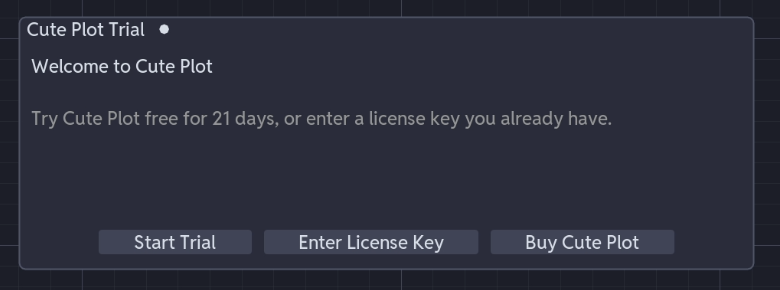
On first launch, enter the licence code sent to you by email, or start your 21 day trial.
Configuration Directory
Cute Plot stores its settings in %USERPROFILE%\.cuteplot\. This directory contains:
templates\- saved plot templatesrecent_templates.json- recently used templates- configuration files and logs
Software Updates
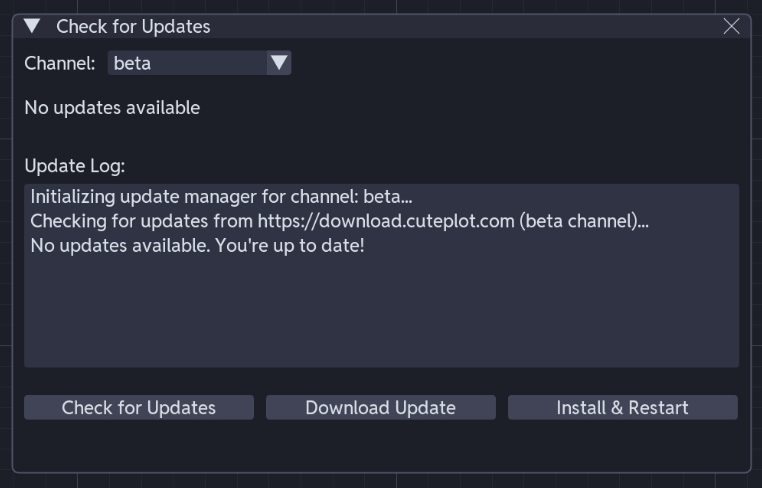
Cute Plot will check for updates automatically, and prompt when a new version is available to download. The updater does not install or download the update automatically, but you can do this via the Update GUI.
Troubleshooting
Application Will Not Start
- Check that the Cute Plot executable is still present and has not been quarantined by your anti-virus software
Poor Performance
- Close applications competing for the GPU, particularly Microsoft Teams
- Check that OpenGL 3.3 is available (your PC has correctly installed GPU drivers); software rendering is much slower
File Loading Issues
- Check the file format is supported: CSV, Excel, Parquet, PSCAD (
.inf+.outor.psout), PSS/E (.out) or Blackbox RTS (.dat). See Supported File Formats - Check you have permission to read the file
- Try to move the time column to the first column of the file, and remove extra headers (for
.csv/.txtfiles)
Getting Help
- Documentation: check the relevant User Guide section
- Support: contact support with your system information and error logs (email support@cuteplot.com)
Uninstallation
From the Start Menu
Select Start > All apps and find Cute Plot in the list. Right-click it, then select Uninstall.
From Settings
Select Start > Settings > Apps > Installed apps. Find Cute Plot, then select More > Uninstall.
Remove Configuration
Uninstalling leaves your settings and templates in place. To remove them, delete %USERPROFILE%\.cuteplot\.
Next Steps
- Follow the Quick Start Guide
- Read the User Interface Overview
- Learn about Supported File Formats