Series Management
Cute Plot allows you to quickly preview, filter, and look through thousands of series at once to find what you need to visualise. A lot of work has been done to make this process seamless and quick. Loading files is performed by the fastest parsers available, and previews are quickly generated in the background, without slowing you down.
This guide explains how to find, select and plot series from the sidebar.
Looking for a walkthrough?
See the Quick Start for a guided introduction to browsing and plotting series.
Loading Files
Drag files onto the sidebar. Each file appears as a collapsible header with its series listed underneath. Files over the lazy-load threshold (200 MB by default, adjustable in Preferences) load lazily: a series is read from disk only when you first plot it. See Supported File Formats.
Selecting Series
One series: click it.
Several series: Ctrl+click to add or remove individual series.
A range: click one series, then Shift+click another. This works across files.
Series Tooltips
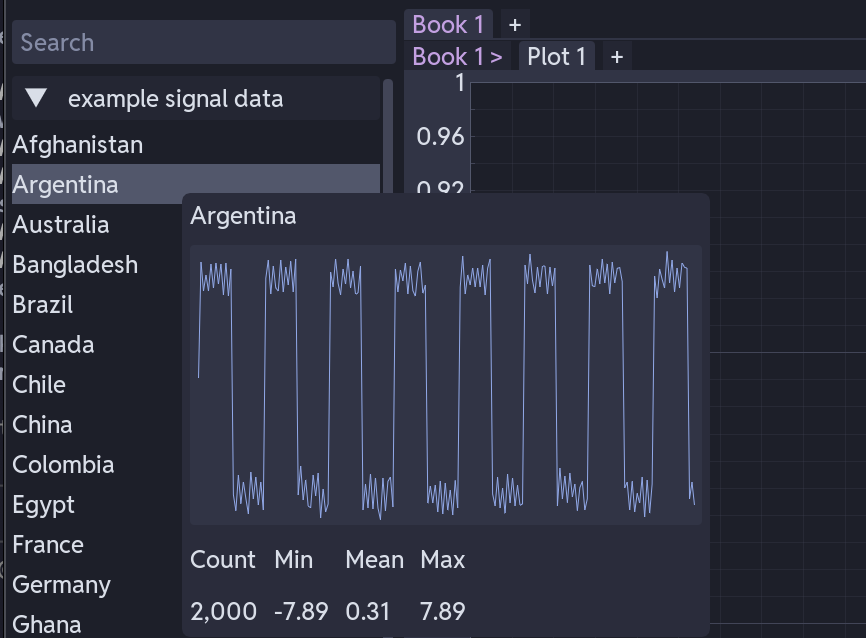
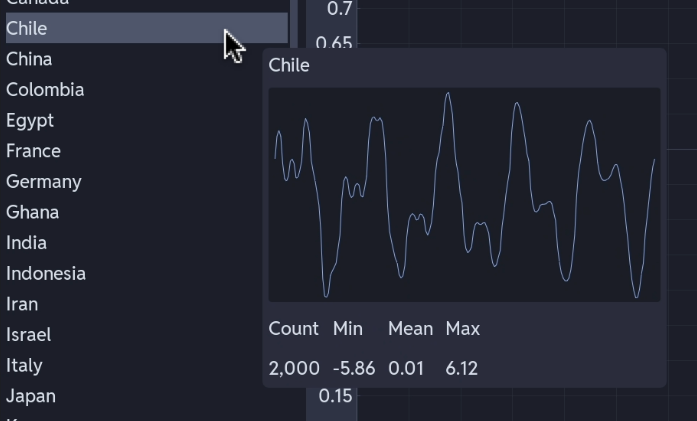
Hover over a series to see a preview plot and its point count, minimum, mean and maximum.
Hover over a file header to see the file size, column count, start time, last modified date and full path.
Searching and Filtering
Type in the search bar to filter series as you type. Files with no matching series are hidden.
Basic Search
Type part of a name. volt matches Voltage_A and HV_voltage. Matching is case-insensitive.
Advanced Search
See Search Function for the full query syntax.
Dragging a Whole File (Templates)
When a template is loaded, drag the file header rather than individual series onto the plot area. The template then distributes the file's series across the subplots according to its patterns.
Right-Click Menus
On a File Header
- Rename File - changes the display name in the sidebar
- Create Plot from Template - applies a saved template to this file in a new plot tab
- Export File - saves the file's data to
.csvor.parquet - Close File - unloads the file and frees its memory
On a Series
Right-click shows the series name with a Rename option below it. Click Rename, type the new name in place, and press Enter to confirm or Escape to cancel. Series re-sort alphabetically after renaming, and the tooltip shows both the new and the original name.
Expanding and Collapsing Files
Expand and Collapse, below the file list, open or close every file header at once. This only shows or hides each file's series list, it does not change your selection.