User Interface
Reference for all Cute Plot interface elements.
New to Cute Plot?
See the Quick Start for a guided walkthrough of the interface.
Main Interface Layout
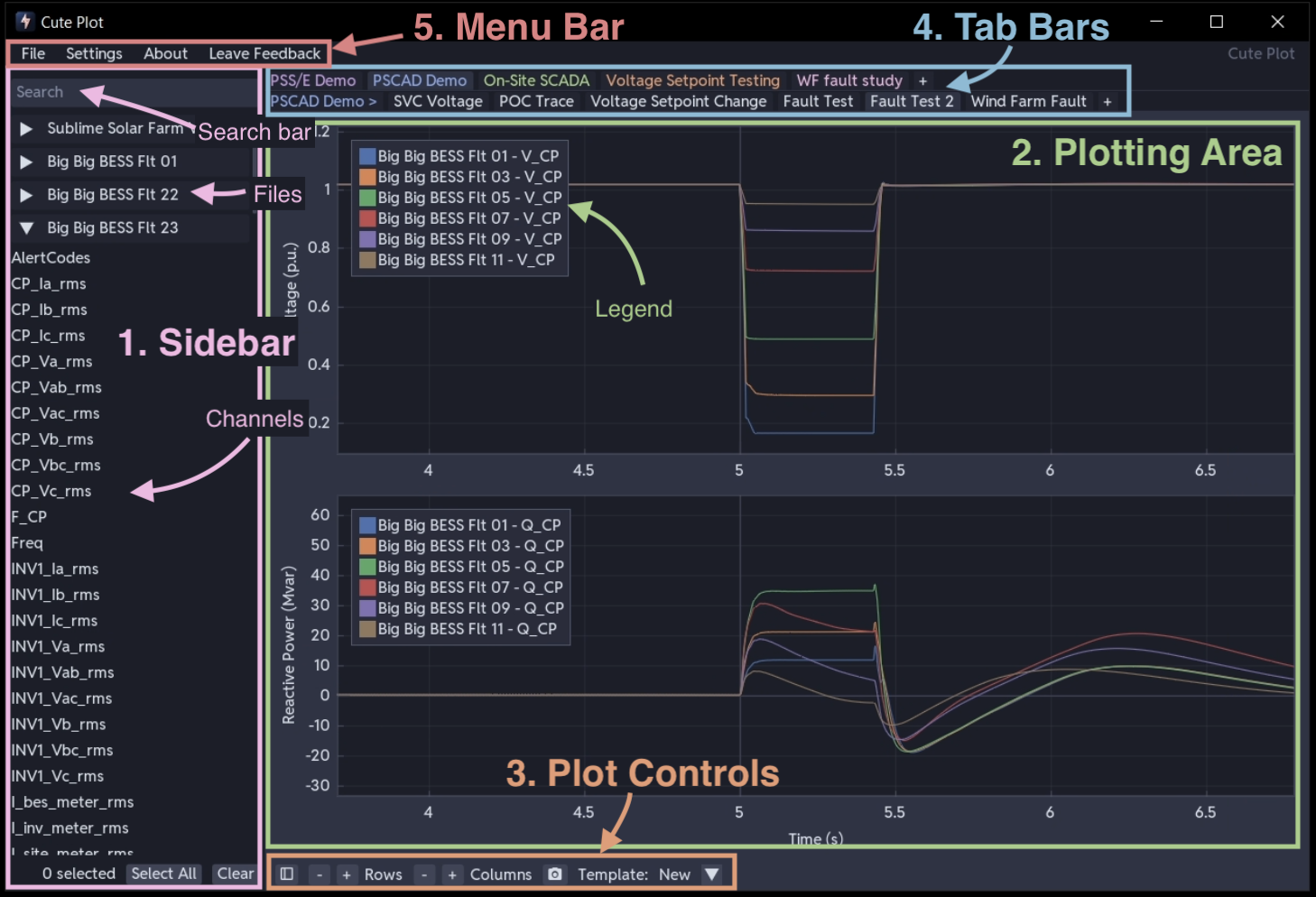
The interface is organised into five main areas:
- Sidebar (left) - file management, browsing channels, search
- Plotting Area (right) - subplot grid with data visualisation
- Plot Controls (bottom) - grid configuration, screenshot, templates
- Tab Bars (top) - dual tab bars
- Menu Bar (top) — file operations, settings
1. Sidebar
Loaded files appear here. Each file is represented by a collapsable header, which contains the channels of each file.
File Search Bar
- Enter text to search and filter channels by name
- Supports boolean logic and wildcards — see Search Function
File Area
- Collapsable Headers (Files): Represent loaded data files (click to expand/collapse)
- Channels: Individual data columns within files
Selection Controls
- Selection Counter: Shows number of selected series
- Select All: Select all visible series
- Clear: Deselect all series
2. Plotting Area
Subplot Grid
Each plot contains a configurable grid of subplots (1x1 up to 5x3). X-axes are synchronised across all subplots, so if you zoom in one plot, each other plot’s X-axis is updated. Each subplot has independent Y scaling. See Plotting & Navigation for details.
Legend
The legend shows the currently plotted channels. Right clicking on a channel in the legend opens a menu of controls, which allow you to: - Rename channels - Apply data transformations. See Data Transformations for more information
3. Plot Controls
Row/Column Count Selector
- Rows: (±) Buttons to set the number of subplot rows (1-5)
- Columns: (±) Buttons to set the number of subplot columns (1-3)
Screenshot Tool
Capture current plot view as PNG with timestamp. By default, copies screenshot to clipboard
Template System
Quick access to saved templates. Applying a template distributes dropped files on plots based on patterns — see Templating System
4. Tab Bar
Each tab represents a separate plot. There are two layers of nested tabs: - Books: Can contain as many plots as required - Plots: Contains a single subplot
Tabs on the tab bar are reorderable - Drag to reorder. Furthermore; - Add plots: Click "+" button to create new plots - Right-click menu: Additional plot options (close/rename tabs)
5. Menu Bar
File Menu
Options for saving, loading workspaces and data files are here.
Settings Menu
Query Options
Configure which statistics are calculated during data analysis. See Query & Analysis Tools for details on each statistic.
Theme Options
Select a theme for Cute Plot. More will be added soon! - Dark Theme: Default dark interface - Light Theme: Light colour scheme
Updates
Check and download updates to Cute Plot, and change update options
Plot Types
Change plot types, at present only time series and DateTime plots are supported
About Menu
- Application version and system information
- License Information: Current license status and details
Feedback
- Leave Feedback: Built-in feedback form
Mouse and Keyboard Interactions
File Area
| Action | Effect |
|---|---|
| Single click | Select file or series |
| Ctrl+click | Multi-select series |
| Shift+click | Multi-select series |
| Right-click | File context menu (rename, close) |
| Drag & drop | Move series to plots |
Plot Area
| Action | Effect |
|---|---|
| Mouse wheel | Zoom in/out |
| Left mouse + drag | Pan view |
| Hover axes + scroll | Lock opposite axis during zoom |
| Right-click | Context menu |
| Right-click + drag | Zoom rectangle |
| Ctrl+click + drag | Create query rectangle |
| Middle mouse + drag | Create query rectangle |
| Drag channel from sidebar | Add channel to subplot |
Series Legend
| Action | Effect |
|---|---|
| Drag from legend | Drag channel between subplots |
| Right click | Open series transformation/rename/delete options |
Context Menus
Plot Right-Click Menu
- Add Annotations: Horizontal line, vertical line, linked vertical line, draggable text annotation
- Modify Plot Labels: Edit plot title, edit Y-axis label
File Right-Click Menu
- Rename File: Change display name
- Close File: Remove file from session