Data Transformations
Data transformations allow to you shift your data around, applying scaling to channels, or shifting channels up and down/left to right.
Looking for a walkthrough?
See Analysing a Recording or Comparing Multiple Files for step-by-step examples of using transformations.
Overview
All transformations are non-destructive — your original data is never modified. Transformations are applied during visualisation and can be reset at any time.
Formula: New_Value = (Original_Value x Multiplier) + Offset
Multiply is applied first, then add (standard BODMAS order).
Transformation Controls
Each plotted series has transformation sliders in its legend entry, which can be accessed by right clicking on the channel in the legend:
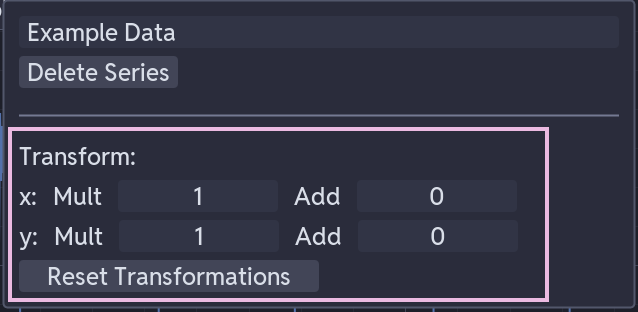
To apply a transformation you can: - Drag sliders to adjust values in real time - Click slider to enter an exact value - Reset button restores all transformations to defaults (multiply = 1.0, add = 0.0)
Transformation Types
Y Multiply (Scale)
- Range: -10.0 to +10.0
- Default: 1.0
- Scale amplitude. Common uses: unit conversion, signal inversion.
Y Add (Offset)
- Range: -1000.0 to +1000.0
- Default: 0.0
- Shift the baseline. Common uses: DC bias removal, calibration offset.
X Multiply (Time Scale)
- Range: -10.0 to +10.0
- Default: 1.0
- Scale the time axis. Common uses: time unit conversion, reverse time direction.
X Add (Time Offset)
- Range: -1000.0 to +1000.0
- Default: 0.0
- Shift the time origin. Common uses: fix time offsets, apply time corrections.
Common Examples
Unit Conversions
| Conversion | Y Multiply | Y Add |
|---|---|---|
| Per-unit to percentage | 100.0 | 0.0 |
| kV to V | 1000.0 | 0.0 |
| V to kV | 0.001 | 0.0 |
| Signal inversion | -1.0 | 0.0 |
Time Adjustments
| Adjustment | X Multiply | X Add |
|---|---|---|
| Seconds to milliseconds | 1000.0 | 0.0 |
| Shift 0.1 s earlier | 1.0 | -0.1 |
| Shift 0.5 s later | 1.0 | 0.5 |
Signal Processing
| Operation | Y Multiply | Y Add |
|---|---|---|
| Remove 2.5 unit DC offset | 1.0 | -2.5 |
| 2% gain correction + 50 mV offset | 1.02 | -0.05 |
Template Integration
Templates can include automatic transformations. This can be done by applying the transformation, then saving the template. The template file stores the transformation as follows:
subplots:
  - position: [0, 0]
    series_names: ["Voltage*"]
    transformations:
      - series_pattern: "Voltage*"
        operation: "multiply_y"
        value: 100.0        # Convert to percentage
      - series_pattern: "Time*"
        operation: "add_x"
        value: -1.0          # Shift time origin
Transformation types in templates: multiply_x, multiply_y, add_x, add_y. See Templating System.
Technical Details
- Transformations are applied efficiently to all downsampling levels
- Moving a series between subplots preserves its transformation state
- Query analysis operates on transformed values
- Annotations track with transformed coordinates
Troubleshooting
Transformations Not Applying
- Check that values are not at defaults (multiply = 1.0, add = 0.0)
- Ensure that you haven’t set multiply to 0!