Series Management
How to find, select, and plot series from the sidebar.
Looking for a walkthrough?
See the Quick Start for a guided introduction to browsing and plotting series.
Loading Files
Drag and drop files onto the sidebar. Each file appears as a collapsible header with its series listed underneath. Large files load lazily — series data is only fetched from disk when you first plot it.
Selecting Series
Pick one: Click it.
Multi-select: Ctrl+Click to add/remove individual series.
Range select: Click one series, then Shift+Click another. Works across files.
Select all visible: Use the Select All button. Only selects series not hidden by search filters.
Series Tooltips
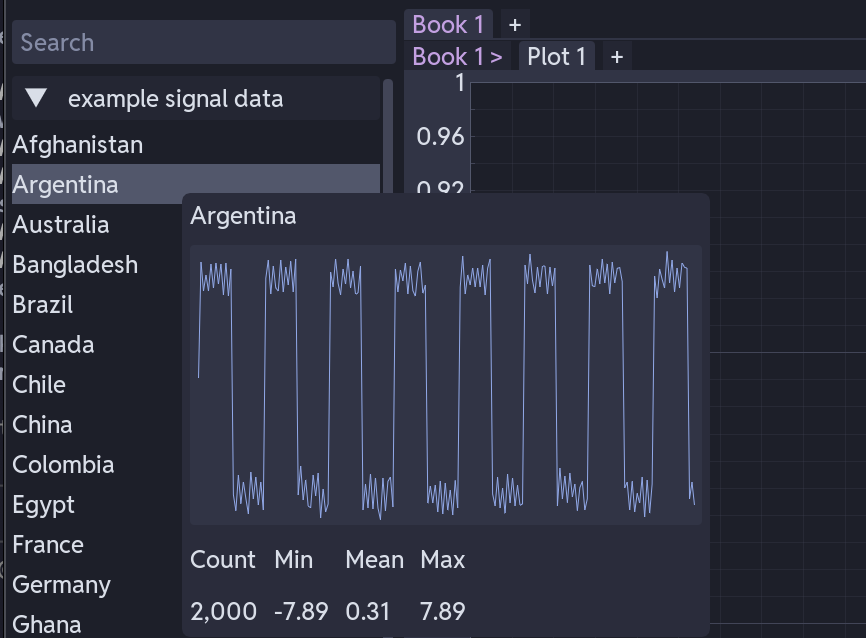
Hover over a series to see a mini preview plot and stats (point count, min, mean, max).
Hover over a file header to see file size, column count, start time, last modified date, and full path.
Searching and Filtering
Type in the search bar to filter series in real time. Files with no matching series are hidden automatically.
Basic search
Type part of a name. volt matches "Voltage_A", "HV_voltage", etc. Case-insensitive.
Advanced search
For the full query syntax reference, see Search Function.
Dragging a Whole File (Templates)
When using a template, drag the file header (not individual series) onto the plot area. The template distributes series across subplots based on its matching patterns.
Right-Click Menus
On a file header
- Rename File — change the display name in the sidebar
- Use Timestamp — toggle (datetime files only) to use original timestamps on the x-axis
- Close File — unload the file and free its memory
On a series
- Rename Series — change the display name. Series re-sort alphabetically after renaming. The tooltip shows both the new and original name.