Plotting & Navigation
The plot area is built around a grid of subplots with synchronised X-axes. It supports zoom, pan, annotations, and analysis tools.
Subplot Grid
Each plot tab contains a grid of subplots. Use the Rows (1-5) and Columns (1-3) steppers at the bottom of the plot area to resize the grid. Changing the grid preserves existing plots — they aren't cleared when you add rows or columns.
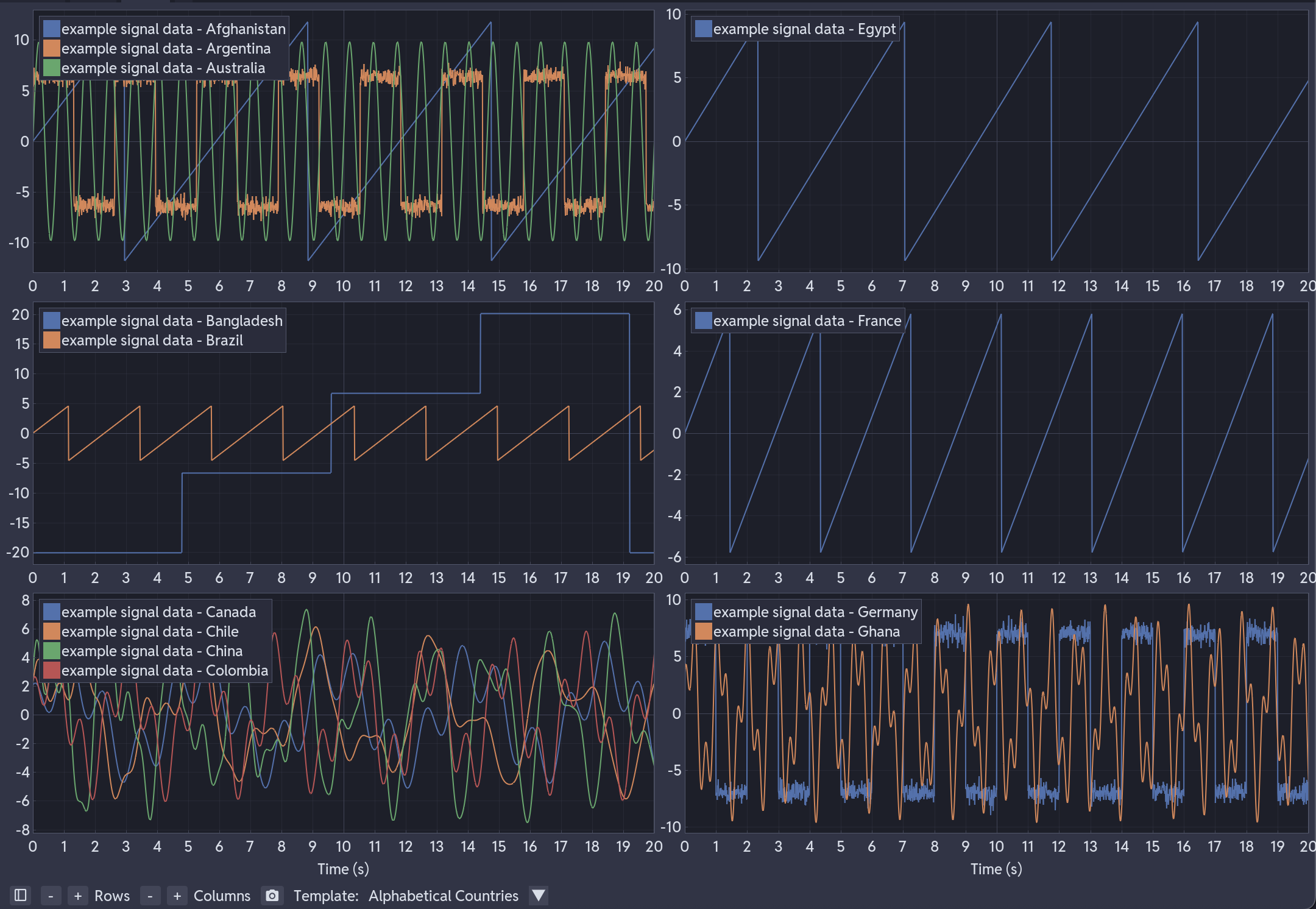
All subplots share the same X-axis range. Zooming or panning in one subplot updates all others, keeping time-aligned signals in sync. Each subplot has its own independent Y-axis.
Plot Tabs
Click the + button to create a new plot tab. Each tab has its own grid, series, and settings. Use tabs to organise different views of the same data — for example, one tab for voltages and another for currents. More information is available in User Interface.
Adding Series to a Plot
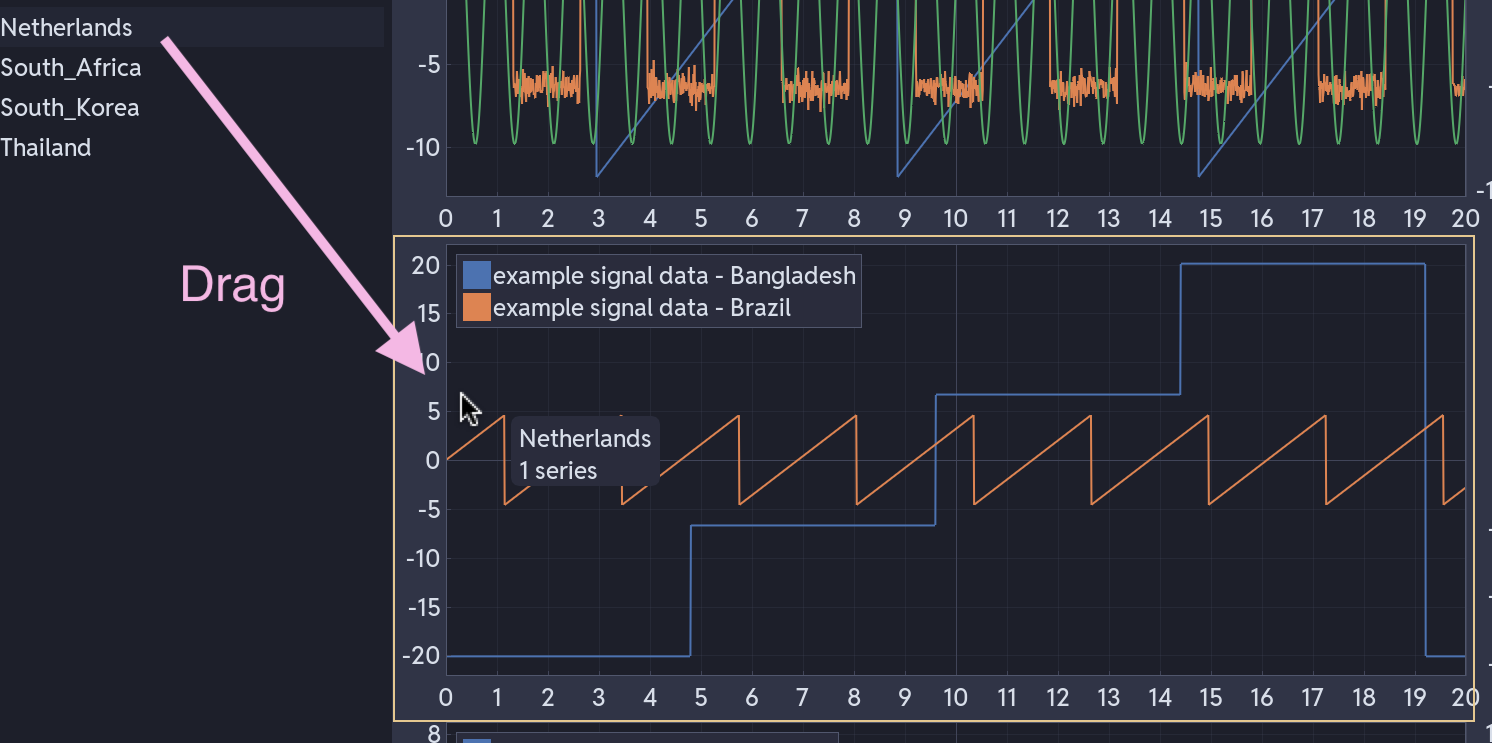
From the sidebar: Select series (Ctrl+click for multiple), then drag them onto a subplot. Colours are assigned automatically from a 20-colour palette.
With a template: Load a template, then drag a file widget from the sidebar onto the plot area. Series are distributed across subplots based on the template's pattern matching. See Templating System.
Moving between subplots: Drag a series from one subplot's legend to another. Transformations are preserved during the move.
Navigation
| Action | Effect |
|---|---|
| Mouse wheel | Zoom in/out |
| Left mouse + drag | Pan view |
| Hover axes + scroll | Lock opposite axis during zoom |
| Right-click | Context menu |
| Right-click + drag | Zoom rectangle |
| Ctrl+click + drag | Create query rectangle |
| Middle mouse + drag | Create query rectangle |
| Drag channel from sidebar | Add channel to subplot |
All zoom and pan actions are synchronised across subplots on the X-axis. Y-axis zoom and pan are per-subplot.
Legend
Each series in a subplot has a legend entry with:
- Click the legend label to toggle series visibility
- Rename field to change the display name
- Delete button to remove the series from the subplot
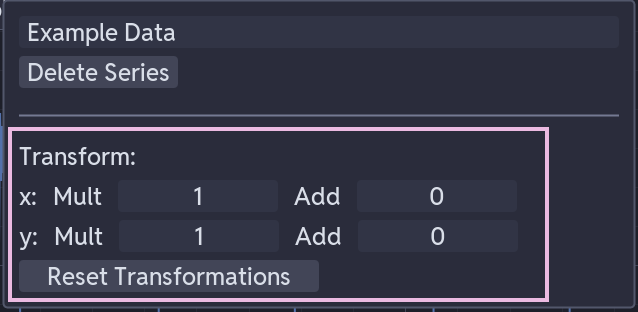
- Transform sliders (below delete) for scaling and offsetting data:
- X Mult / X Add — scale and offset the time axis
- Y Mult / Y Add — scale and offset the data values
- Reset button to restore original data
Right-Click Menu
Right-click in any subplot to access:
| Option | What it does |
|---|---|
| Add Annotations | Add horizontal line, vertical line, linked vertical line, or text label at cursor position |
| Add Confidence Band | Add a shaded tolerance band around a selected series |
| Modify Plot Labels | Set the subplot title and Y-axis label |
| Toggle Stats Overlay | Show or hide a live statistics table for the subplot. At present this only shows the NER metrics |
| Power Systems Analysis | Select a series, set a time range, and choose NER metrics (rise time, settling time) with reference line overlays |
Confidence Bands
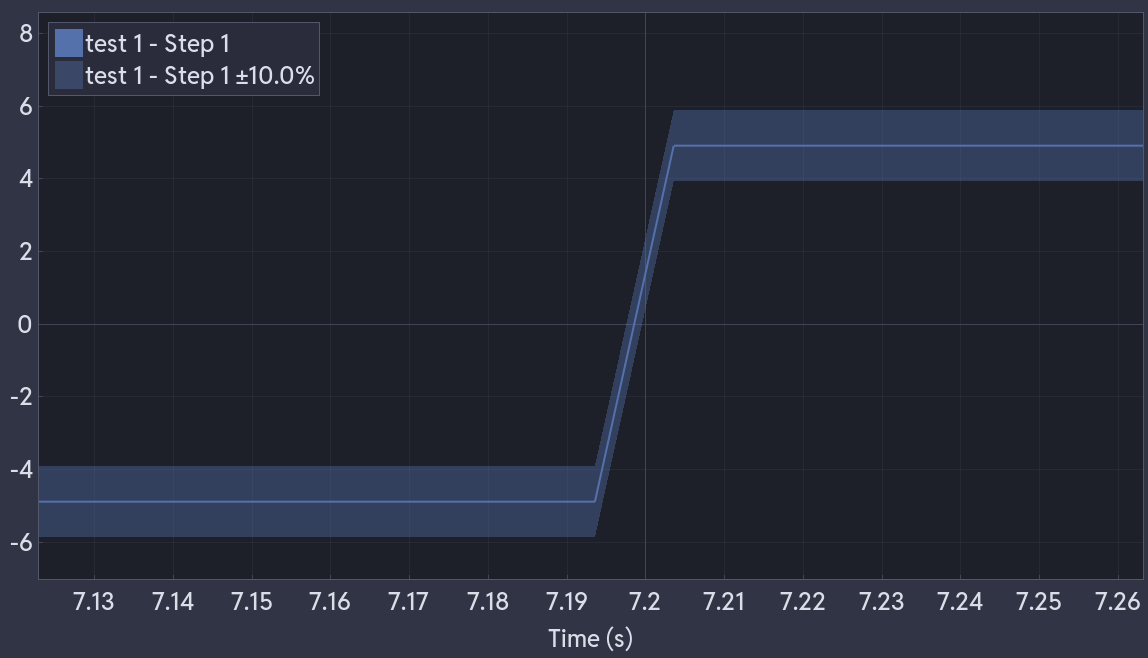
Right-click > Add Confidence Band, then pick a series. This adds a shaded region around the series representing a percentage tolerance band. Useful for visualising whether signals stay within acceptable limits.
Rise/Settling Time Overlay
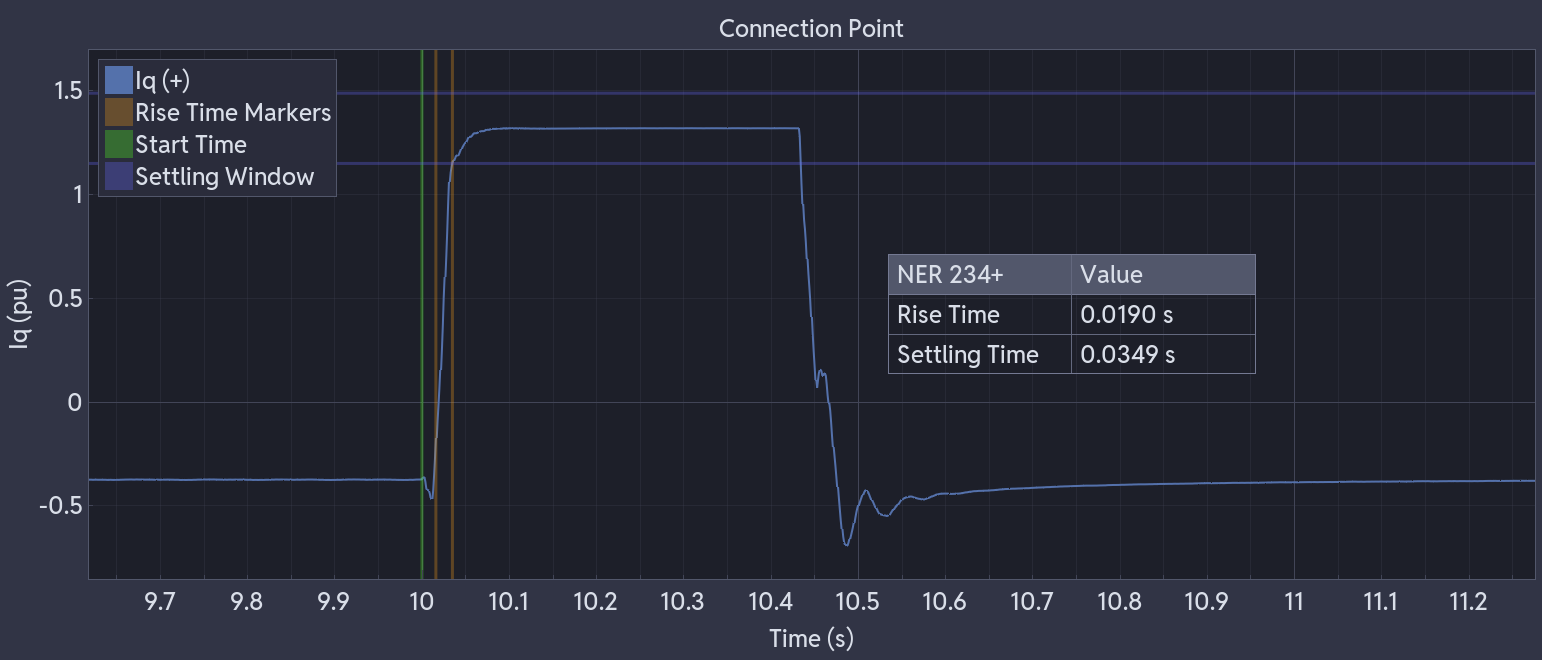
The stats overlay and power systems analysis work together. Use the Power Systems Analysis right-click menu to select a series, set a time range, choose your NER calculation method, and pick which metrics and reference lines to display. Then toggle Toggle Stats Overlay to show a draggable table on the subplot with the calculated rise and settling times.

The overlay shows the results for your selected series and time range, along with optional reference lines (10%, 90%, start time, settling window) drawn directly on the plot.
Screenshots
Click the screenshot button (bottom of the plot area) to capture the current view as a PNG. The image is saved to the application's screenshot folder with a timestamp filename, and also copied to the clipboard on Windows.
Time-Series Mode
When you drop a timestamped series onto an empty plot, time-series mode is enabled automatically. This switches the X-axis to display timestamps in ISO 8601 format. Non-datetime series dropped onto the same plot are offset to align with the timeline.
Performance
Cute Plot uses multi-level downsampling to keep interaction smooth with large datasets:
- Multiple detail levels are pre-built from the original data
- The appropriate level is selected automatically based on zoom level
- Peaks and valleys are preserved — you won't miss spikes or dips at any zoom level