Quick Start
This is a quick guide to show you how to load data, plot signals, measure values, and annotate your findings.
Open Cute Plot
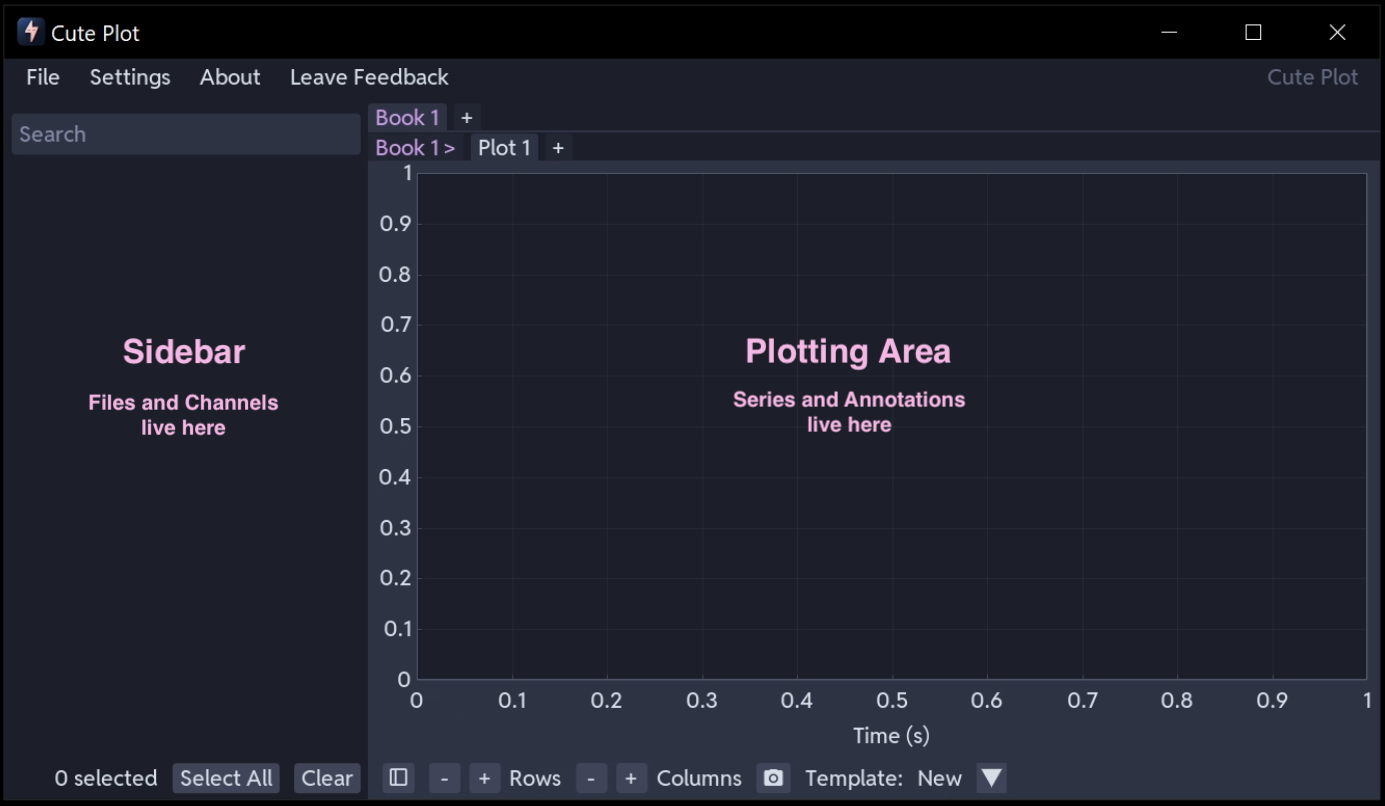
Launch Cute Plot from your Start Menu. You'll see an empty workspace with a sidebar on the left and a plot area on the right.
Load a file
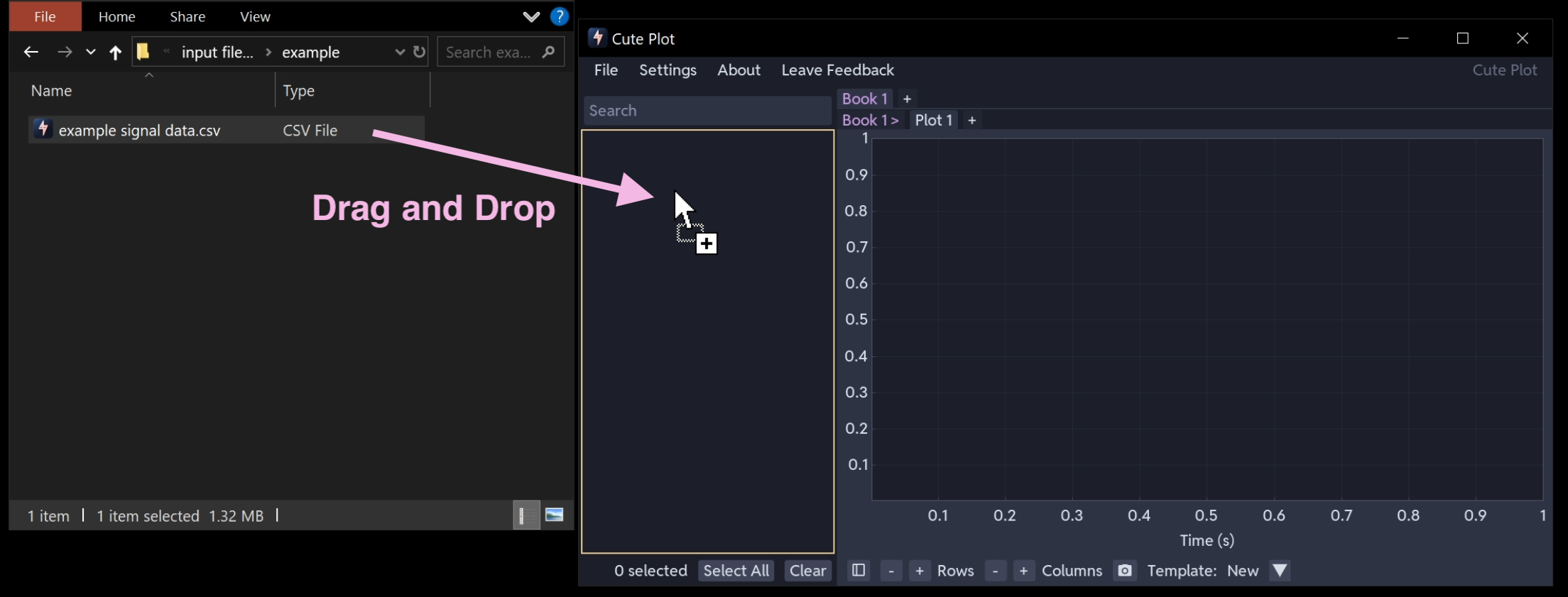
Drag a CSV file from your file explorer into the Cute Plot window. The file appears in the sidebar immediately.
Need a csv file?
Download the example file used in this guide: example signal data.csv
You can also use File → Open to browse for files. Cute Plot supports CSV, PSCAD (.inf/.out), and PSS/E (.out) files. See Supported File Formats for details.
Browse your signals
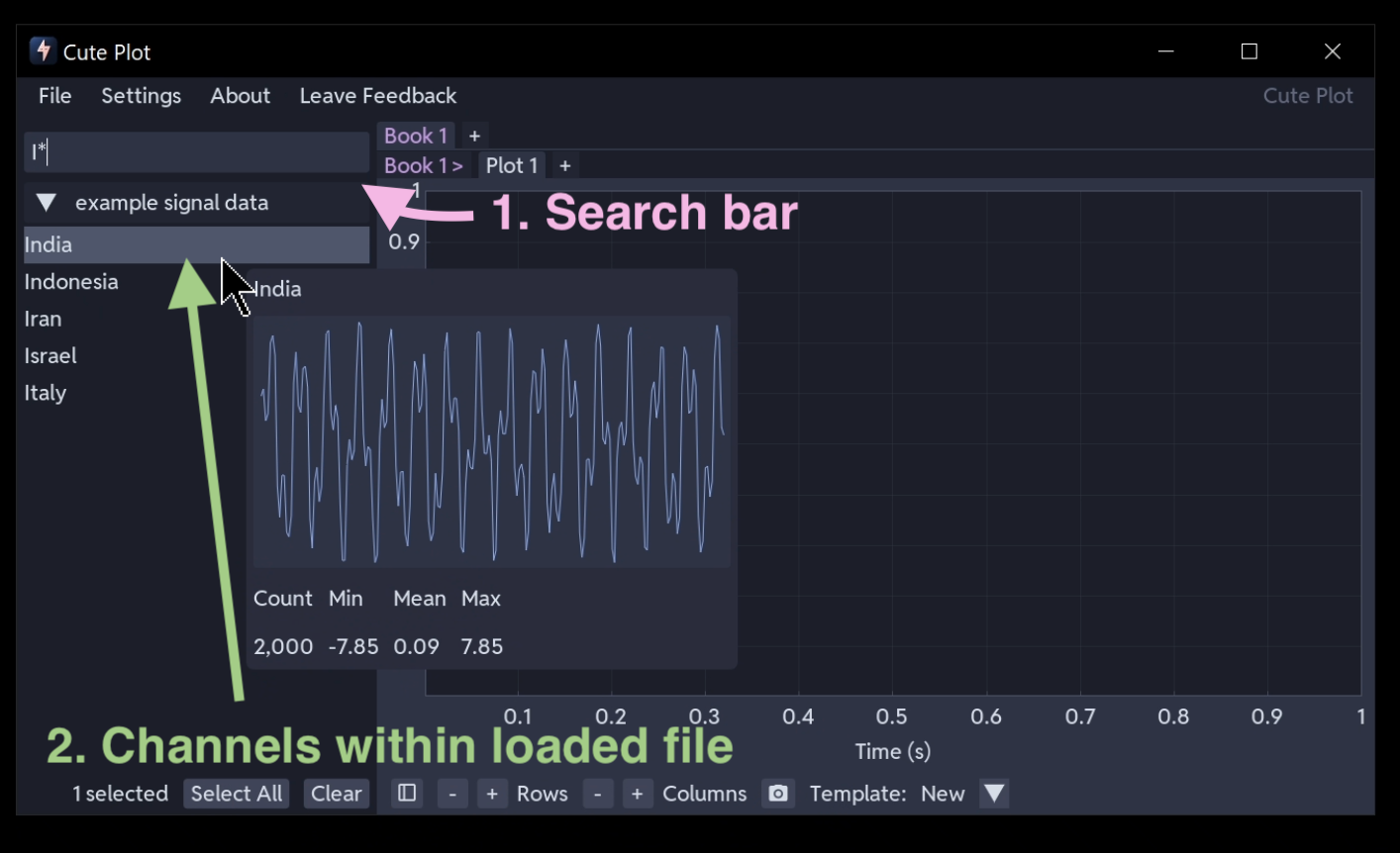
Click the file in the sidebar to expand it. You'll see all the data columns (series) listed underneath.
Hovering over each channel will give you an overview of the data.
If your file has many columns, type in the search bar at the top of the sidebar to filter. For example, type I* to show only channels starting with I. See Search Function for advanced search syntax including boolean logic and wildcards.
Plot signals
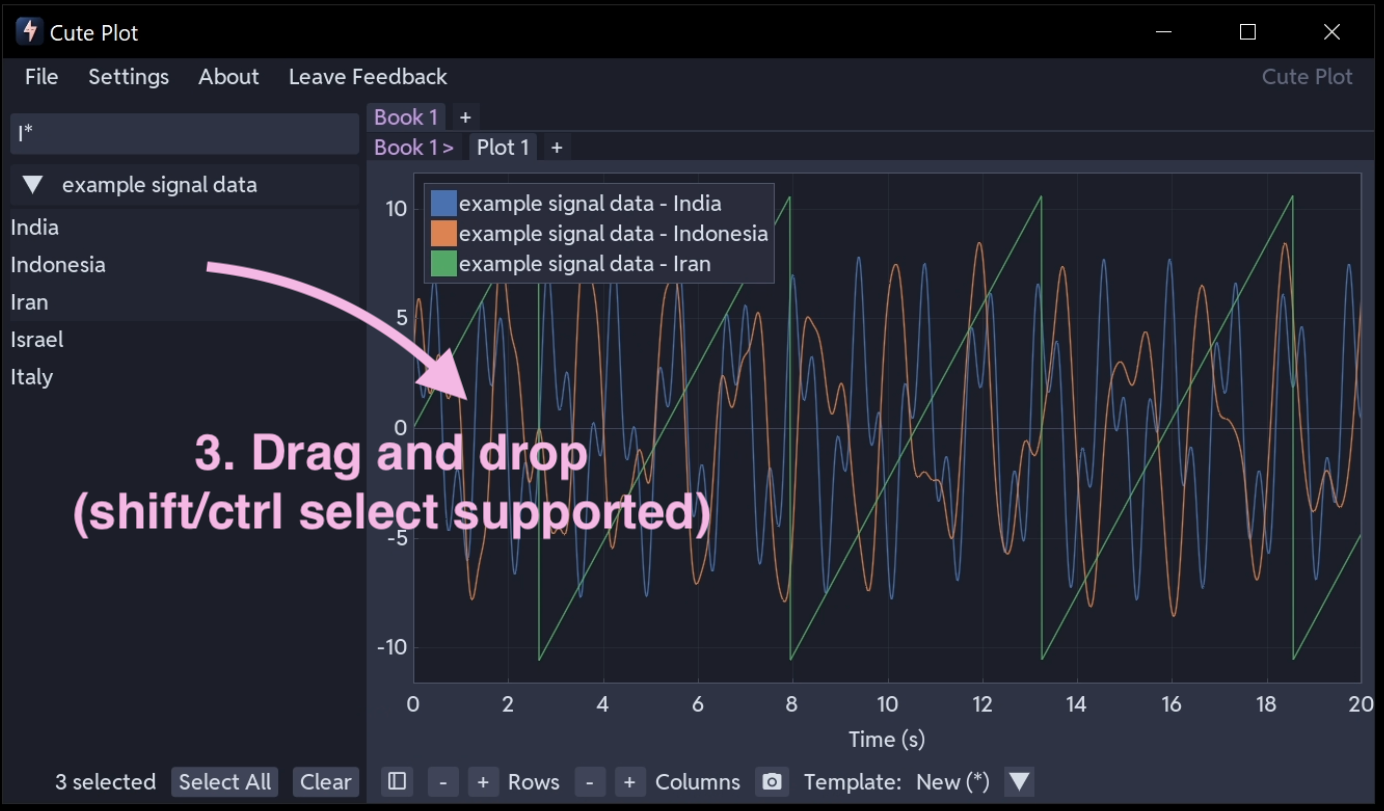
Select one or more series in the sidebar (Ctrl+click or Shift+click to select multiple), then drag them onto the plot area. They appear as coloured lines.
To organise your view, use the Rows and Columns sliders at the bottom of the plot area to create a subplot grid — up to 5x3. You can crag different series to different subplots to keep your layout clean. See Plotting & Navigation for more on subplot grids and rendering.
You can hide the sidebar by pressing the sidebar button in the bottom left corner.
Navigate your data
With your mouse over the plotting area, you can:
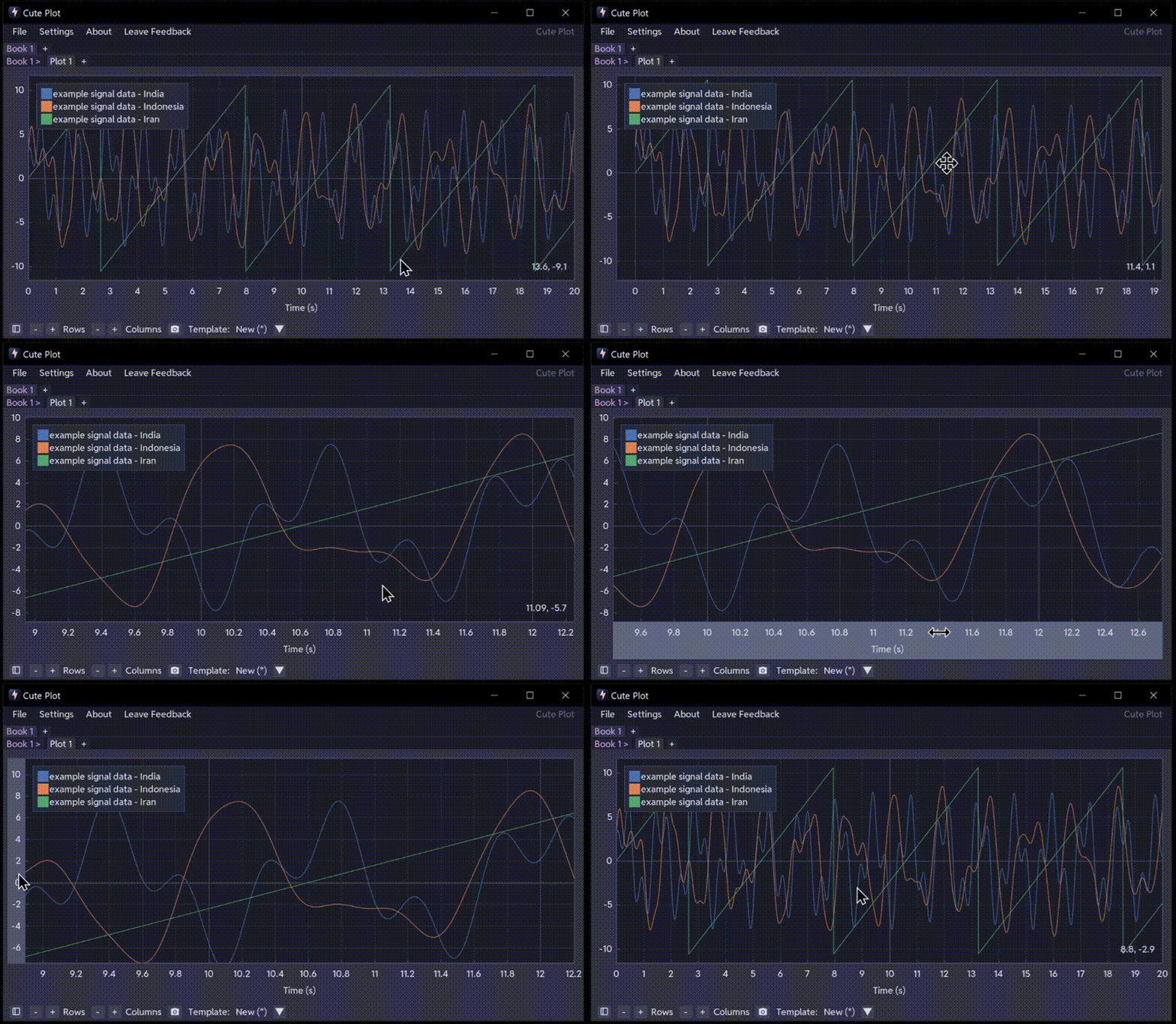
- Scroll the mouse wheel to zoom in and out at the cursor position
- Left-click and drag to pan around the plot
- Right-click and drag to draw a zoom rectangle for precision zooming
- Double-click to fit all data in view
Hover over an axis to lock the opposite axis during zoom — useful for zooming only in time or only in amplitude. You can do the same for dragging.
Measure values
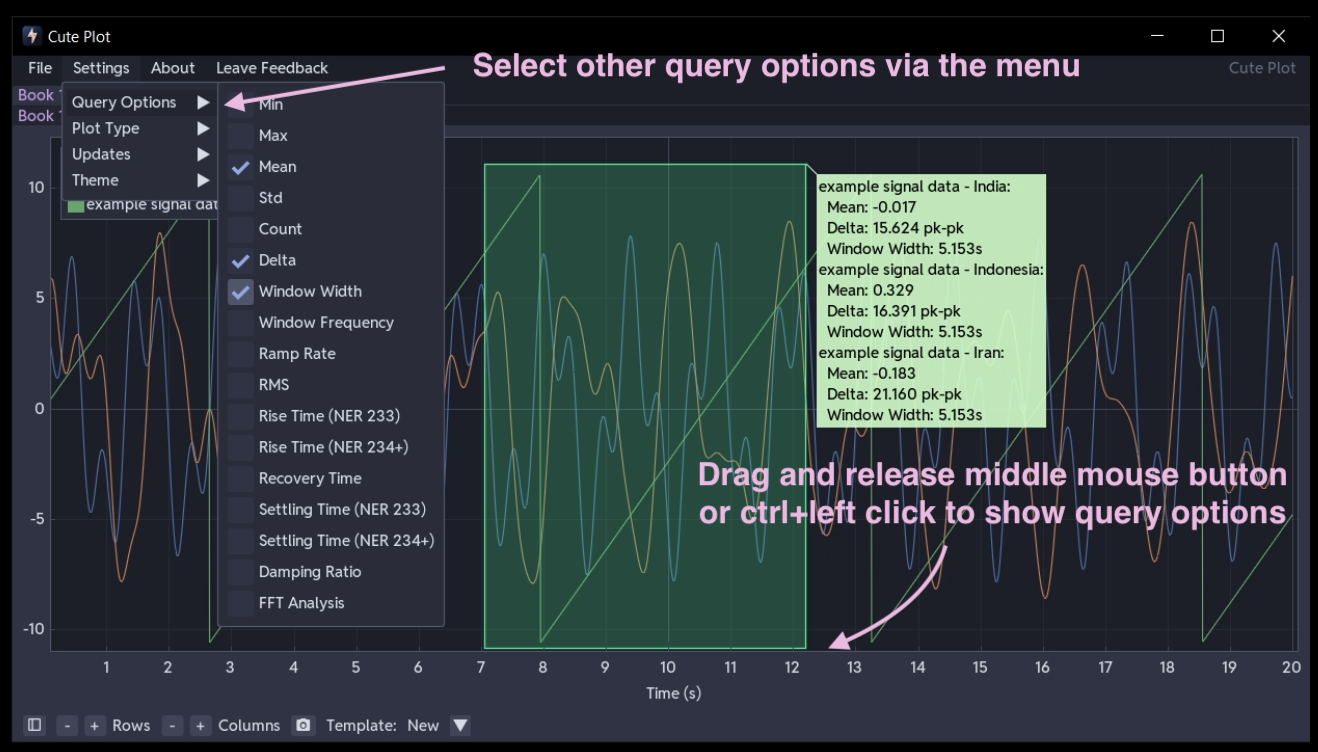
Hold Ctrl and drag in the plot, (or hold Middle Mouse Button and drag) to create a query rectangle. Release the mouse and a statistics popup appears showing min, max, mean, standard deviation, and more for every series inside the rectangle.
Drag the rectangle's corners or edges to resize it, or drag its interior to reposition it. The statistics update in real time.
Enable additional analysis options (RMS, rise time, FFT, and others) in Settings → Query Options. See Query & Analysis Tools for the full list of available statistics.
Add annotations
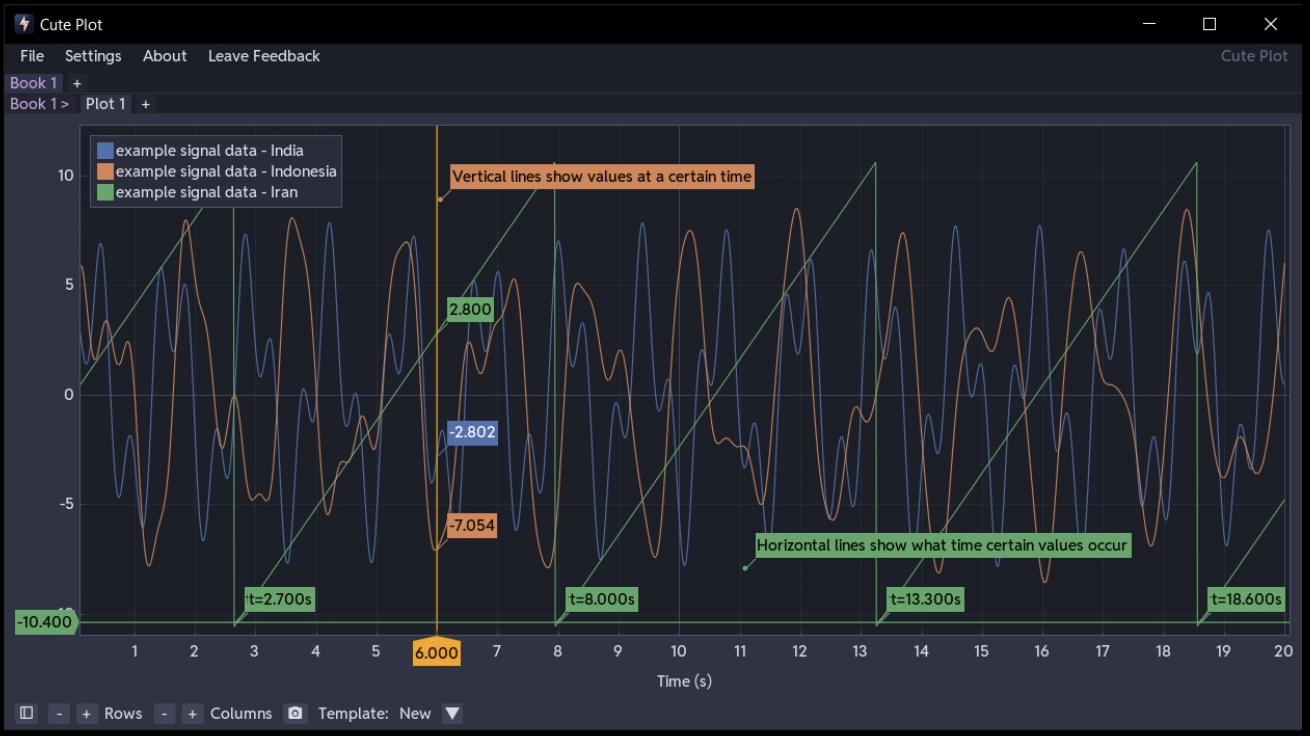
Right-click in any subplot and choose Add Annotations to mark up your plot:
- Horizontal line — mark a threshold or reference level (e.g., 1.1 pu FRT activation voltage)
- Vertical line — mark a specific time instant (e.g., fault initiation at t = 1.0 s)
- Linked vertical line — mark a time instant across all subplots simultaneously (drag one line and they all update)
- Draggable text label — add a note anywhere on the plot
Drag any annotation to reposition it. See Annotations for more information.
Take a screenshot
Click the Take Screenshot button in the plot controls at the bottom to capture your current view. Screenshots are saved as PNG files with a timestamp, and also copied to the clipboard.
Next steps
Now that you've completed a basic session, explore these workflow guides for real-world tasks:
- Analysing a Recording — investigate an event in a simulation or site recording
- Comparing Multiple Files — overlay signals from different test runs
- Building Reusable Templates — automate your plot setup for repeated analysis
- Creating and Sharing Workspaces — load and save workspaces for sharing and for future use